Your Tutor Dashboard Explained
A tour of the LessonPro tutor dashboard: profile views, contact taps, lesson requests, money received this month, recent activity and the Tools grid.
Your tutor dashboard is the first screen you see when you sign in to the LessonPro app. It answers three questions at a glance: are parents finding you, is anyone waiting for an answer, and how much have you been paid this month.
Pull down on the screen at any time to refresh it.
The numbers at the top
The navy band shows your name and your LessonPro code, which starts with LP. Tap the code to copy it. Support asks for it when you contact us, and it is printed on your invoices.
Under the band is the Taking new students switch. Switch it off when your timetable is full. Parents then cannot send you new lesson requests. What the switch changes.
You may also see:
- Turn on notifications, if your phone is not set to alert you. Tap Allow notifications, or Not now to hide the card for 7 days. Why notifications matter.
- Waiting for review, while we check a new application or new ID documents.
- Changes waiting for review, after you edit your profile. Parents keep seeing your current profile until we approve the change.
Then comes Your profile, with a 7D / 30D / 90D switch for the last 7, 30 or 90 days:
- Profile views: how many times parents opened your profile, with a small chart, a daily average and the change from the period before. Tap Daily breakdown for every day.
- Contact taps: how many times someone tapped WhatsApp or Call on your profile, split between the two.
- Requests: lesson requests received. A gold label shows how many are waiting for you. Tap the tile to open them.
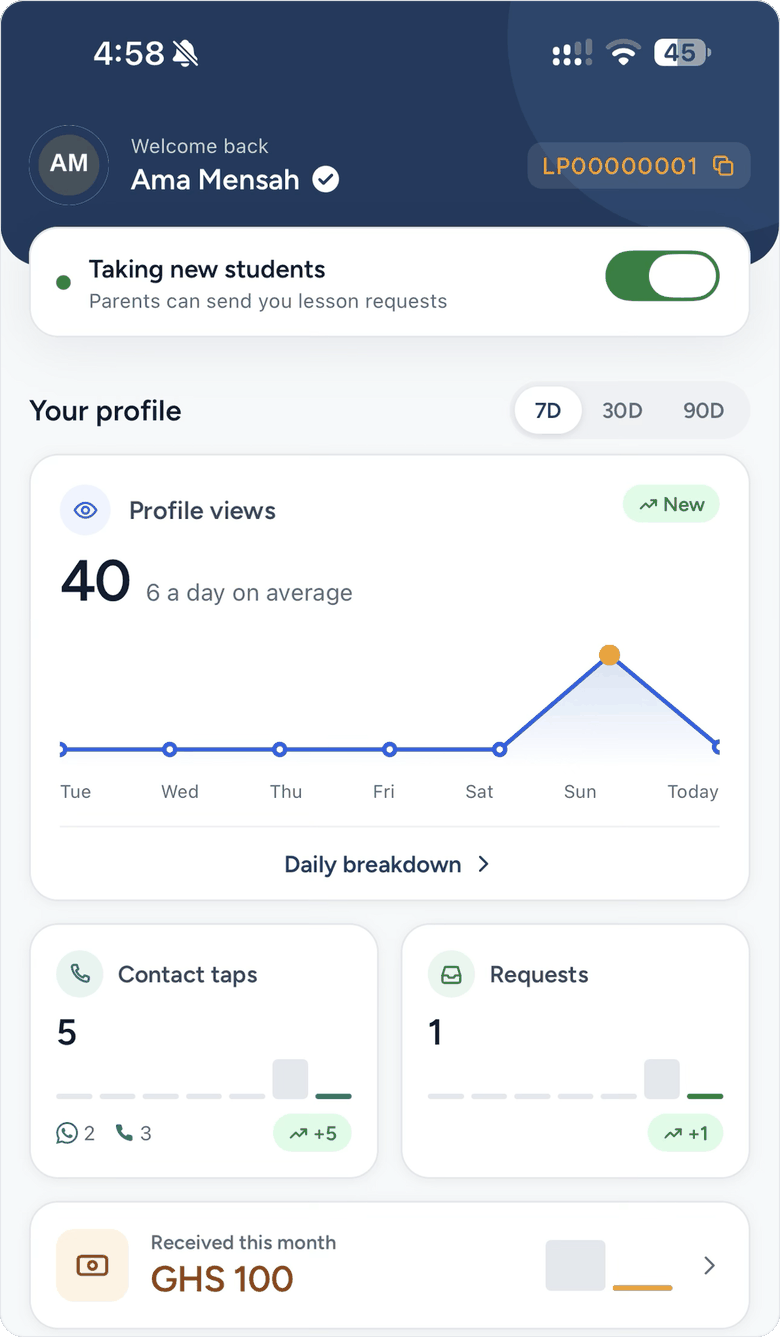
Below them, Received this month shows the money you recorded as paid since the 1st, from your receipts. Tap it to open Earnings.
New to LessonPro? The chart says "Data starts from today" and fills in as parents visit. How views and contact taps are counted.
Recent activity
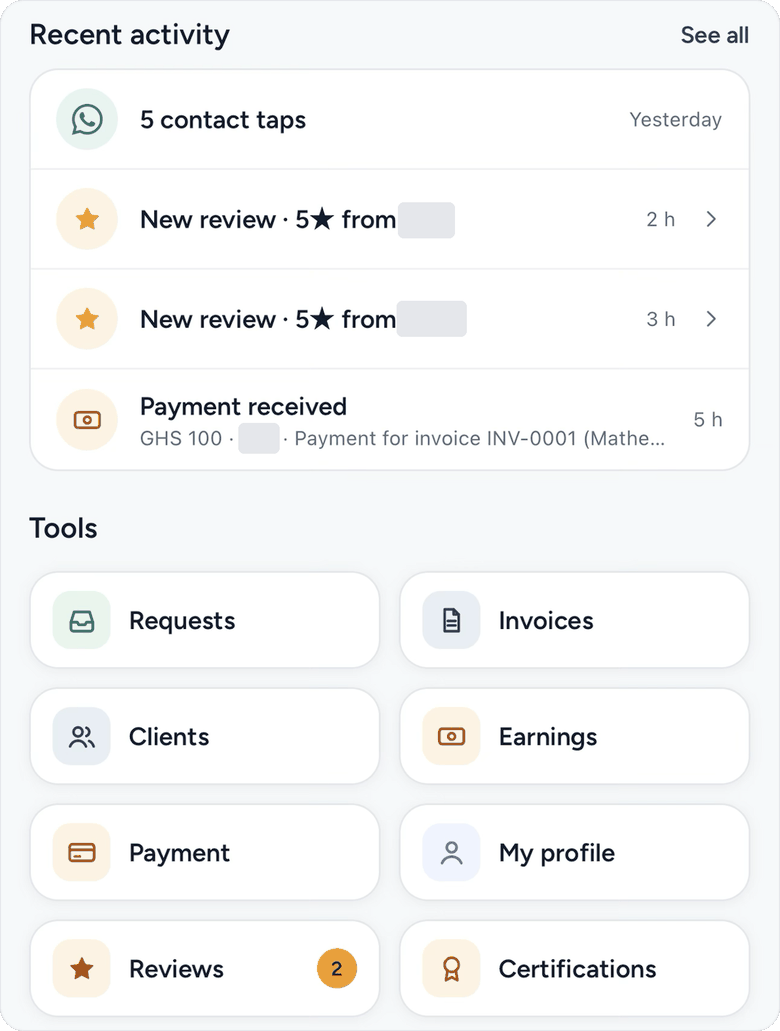
Recent activity lists your latest four events, newest first:
- a new lesson request, such as "New request: Physics"
- a lesson you accepted
- a payment you recorded, with the amount
- a new review, with the star rating (tap it to read the review and reply)
- the contact taps you got on a day, such as "3 contact taps"
Tap See all to open your lesson requests.
The Tools grid: where every feature lives
Every feature in the app is one tap from here:
- Requests: lesson requests, with a gold badge when some are waiting. Accept a lesson request.
- Invoices: invoices and receipts for the parents you teach.
- Clients: the parents and students you saved, with their history.
- Earnings: money received, money still owed and statements.
- Payment: the mobile money number printed on your invoices.
- My profile: what parents see, and the way into every profile setting, from subjects to ID documents and referees.
- Reviews: your reviews. The badge counts reviews you have not replied to.
- Certifications: add teaching certificates for the gold badge.
At the bottom, under Security, are Log out and Sign out everywhere. Both ask you to confirm first. Lost your phone? Sign out everywhere.